
How often should you upgrade FIPSlink Access?
October 20, 2026 – From the desk of Ruhann Labuschagne
Once annually, during the month most appropriate for your maintenance window. That is the short answer, and for most FIPSlink Access sites, it is the whole answer.
The longer answer is about which version to target, and that matters as much as the timing. The following outlines our release cycle and how to make your annual upgrade a routine calendar commitment, not an unforeseen project.
The December release is the one to plan around
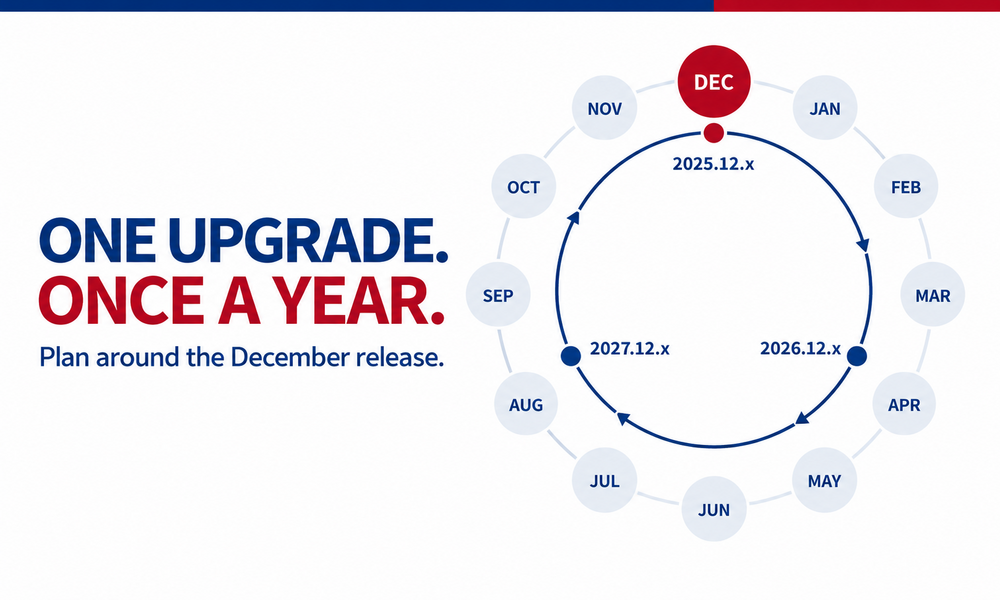
FIPSlink Access uses date-based versioning, YYYY.MM. A full version number has more parts (for example, 2025.12.0.7), but the first two, 2025.12, are the ones that matter for planning. The final release of each year, the December release (YYYY.12.x), is our annual release. It consolidates every feature, performance enhancement, security patch, and compliance update we delivered across that year into a single package.
That means you do not need to track our releases month by month. One upgrade a year carries the entire year of work. Each annual release also folds in usability changes and feature adjustments driven directly by customer feedback from the preceding year. If a critical security fix cannot wait for the next annual release, we will notify affected customers directly.
The rule of thumb
When doing your annual upgrade, target the December version from the previous year. A site on 2025.12.x can upgrade anytime in 2027 to 2026.12.x. In 2028, the same site can upgrade to 2027.12.x, and so forth. Choose a month that suits your schedule—whether February, July, or any time when your change window is less busy and your team has the capacity.
What skipping a year costs you
Skipping an annual upgrade and falling more than one annual release behind can create dependency gaps. Instead of a straightforward, in-place upgrade, you must perform incremental steps, upgrading through intermediate versions sequentially until you reach the latest. This approach requires additional planning, increased downtime, and more moving parts in a system that controls physical access.
Staying within one year of the latest annual release keeps you on a single-step path with minimal disruption. For example, in 2027, a site on 2025.12.x upgrades directly to 2026.12.x, while a site still on 2024.12.x must first upgrade to 2025.12.x.
Compliance does not stand still
Federal identity, credential, and access management requirements evolve. FIPSlink Access enforces those standards in the moment before a door unlocks, so the software has to move with them.
Annual upgrades keep enforcement current and keep you audit-ready. A site running the current annual release is not scrambling for an emergency patch the week an assessment lands.
Start with a free pre-upgrade review
Server upgrades are designed as straightforward in-place installations. Even so, we would rather talk first. And before any upgrade, make sure you have a current backup of the FIPSlink Access server and its database.
Contact support@identityone.net before you touch the server. We will walk through the process with you and go over a pre-upgrade checklist so nothing surprises you mid-window. There is no charge for this. Think of it as a zero-cost risk check that catches small issues in advance, not during your maintenance window.
When you would rather we handled it
For teams that want direct execution, or simply extra peace of mind, we offer a paid Upgrade Assistance Service. Our support engineers can either perform the full upgrade on your behalf or join a live remote session and provide hands-on guidance while your team deploys.
That option exists because sites differ. Some have IT staff with room in the schedule. Others are high-security environments where vendor assistance inside the window is simply the right call.
Contact sales@identityone.net to request a quote ahead of your planned maintenance window.
How to check the version you are running today
There are two quick ways to find it.
Option A: the Administration Client. Launch the FIPSlink Access Administration Client and look at the title bar at the top of the application window. The active version string is displayed there, for example, FIPSlink Access – 2025.12.0.7.
Option B: Programs and Features. On the server hosting FIPSlink Access Server, press Windows Key + R, type appwiz.cpl, and press Enter. Programs and Features opens. Find FIPSlink Access Server in the list. The version number (for example, 2025.12.0.7) appears in the Version column.
Your next steps
- Check the FIPSlink Access version you are currently running.
- Compare it to the previous year’s December release (YYYY.12.x), which you can find on our support portal at https://identityone.freshdesk.com/. If you are more than one annual release behind, plan for a step upgrade.
- Email support@identityone.net to schedule your free pre-upgrade consultation and checklist.
- Email sales@identityone.net if you would like a quote for hands-on upgrade assistance.
One upgrade a year, on a date you choose, is all it takes to stay current, stay compliant, and keep your next maintenance window uneventful.